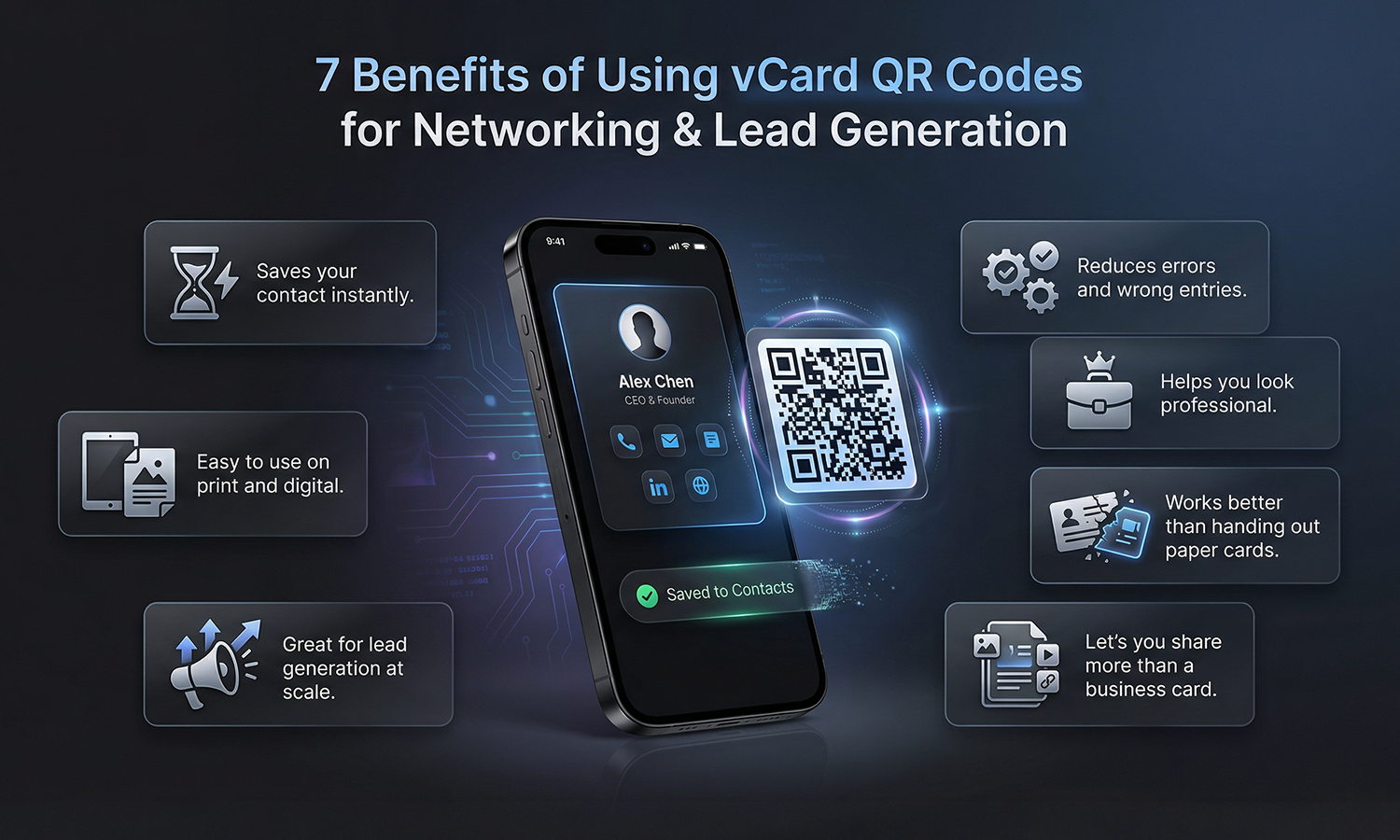
If you share your number often, you already know the problem. People say, “I’ll save it later,” and later never happens. This guide will show you how to create a vCard QR Code, so your contact details get saved instantly with a quick scan.
A vCard QR code is simple, fast, and it looks more professional than reading out your number or asking someone to type it.
Why Use a vCard QR Code for Sharing Contact Details?
A vCard QR code helps you share your contact details in a format that phones can save quickly. Instead of typing your name, number, and email, the person scans and taps save.
This is also why a QR code with vCard is a smart option for:
- Networking events
- Meetings and client visits
- Business cards and ID badges
- Email signatures and brochures
- Sales teams who want smoother lead capture
If your goal is quick follow-ups, learning how to create a vCard QR Code is one of the easiest upgrades you can make.
Information You Can Store in a vCard QR Code
A vCard QR code can store more than just a phone number. You can add:
- Full name
- Mobile number and alternate number
- Email address
- Company name and job title
- Website link
- Office address
- Social links (if needed)
When you build it right, it becomes a complete contact card that saves properly on most phones.
How to Create a vCard QR Code?
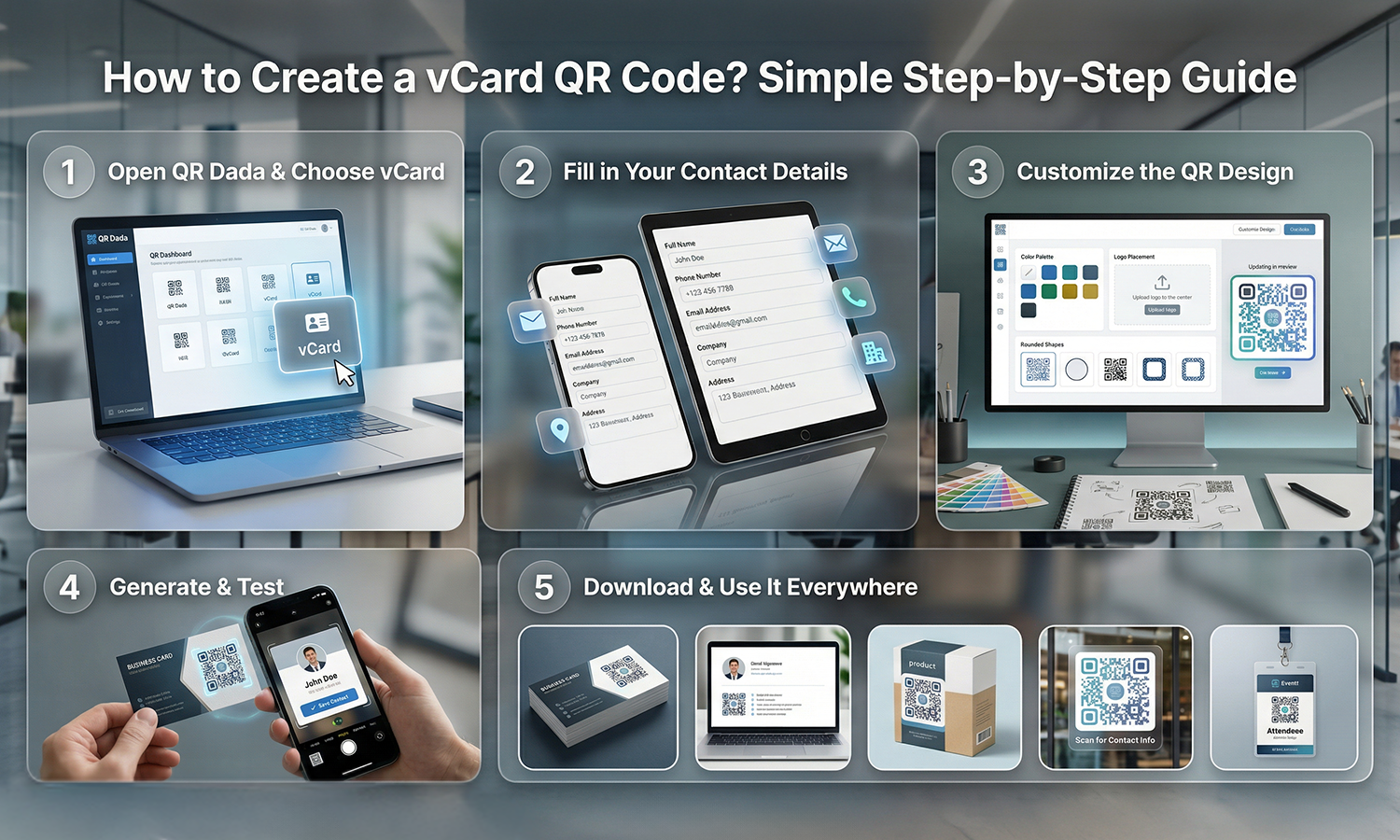
Now let’s get into the steps for How to Create a vCard QR Code using QR Dada.
Step 1: Open QR Dada and choose vCard
Log in to QR Dada and select the vCard option. This is where you start using the vCard QR generator inside the platform.
Step 2: Fill in your contact details
Add your name, phone, email, company, and any optional fields you want. Keep it clean and accurate, because this is what gets saved.
Step 3: Customize the QR design
If you’re using it on a business card or a badge, add your brand colors and logo so it looks official. A well-designed QR gets more scans because it feels trustworthy.
Step 4: Generate and test
Click generate and test it on at least two phones. The scan should open the contact card correctly and give a clear “Save Contact” option.
Step 5: Download and use it everywhere
Once it works properly, download and add it to your visiting cards, stalls, brochures, or even your email signature. This is the cleanest way to create vCard QR code assets that you can reuse again and again.
Which is the Best vCard QR code generator?
The best tool is the one that is easy to use, gives you clean downloads, and helps you create a code that scans properly on print.
QR Dada is built for that. If you’re comparing options and want the best QR code generator for vCard, here’s what you get:
- Simple setup, no technical steps
- Custom styling that still scans well
- Multiple QR types in the same dashboard
- Professional output for both print and digital
If you also want something that’s practical for small teams and growing brands, QR Dada works well as an affordable QR code generator because you can start simple and upgrade only when you need more features.