
It is incredibly frustrating when you are ready to access a menu or website, only to find the QR Code Not Scanning. This issue is rarely a fault of the technology itself and is usually caused by simple design or environmental errors. Identifying why a not working qr code fails is the first step toward saving your marketing campaign from a total shutdown.
Insufficient Quiet Zone Around the QR Code
The "quiet zone" is the essential clear border surrounding a QR code. It separates the data modules from the surrounding text, patterns, or packaging. Without this "buffer," a scanner cannot tell where the code begins and ends.

- The Problem: Designers often crop the image too close to the black modules to save space.
- The Fix: According to international standards, a code must have a quiet zone at least 4 modules wide on all sides. Using QR Dada ensures this margin is automatically calculated for you.
Incorrect Background and Color Contrast Issues
Scanners operate by measuring the difference in light reflectance between dark modules and light backgrounds. If the contrast is too low, the hardware cannot distinguish the data pattern.
- The Rule: For optimal reliability, the foreground color should be at least 80% darker than the background.
- The Fix: Avoid using light grays or pastels on white. Stick to dark primary colors like black or navy. If your QR code contrast issues persist, ensure you are not using "inverted" colors (white modules on a dark background), as many older devices cannot read them.
Blurry or Low-Resolution QR Codes
If a code looks "fuzzy" or pixelated, it will lead to no valid qr code detected errors. This usually happens when raster formats like JPG are stretched too large.
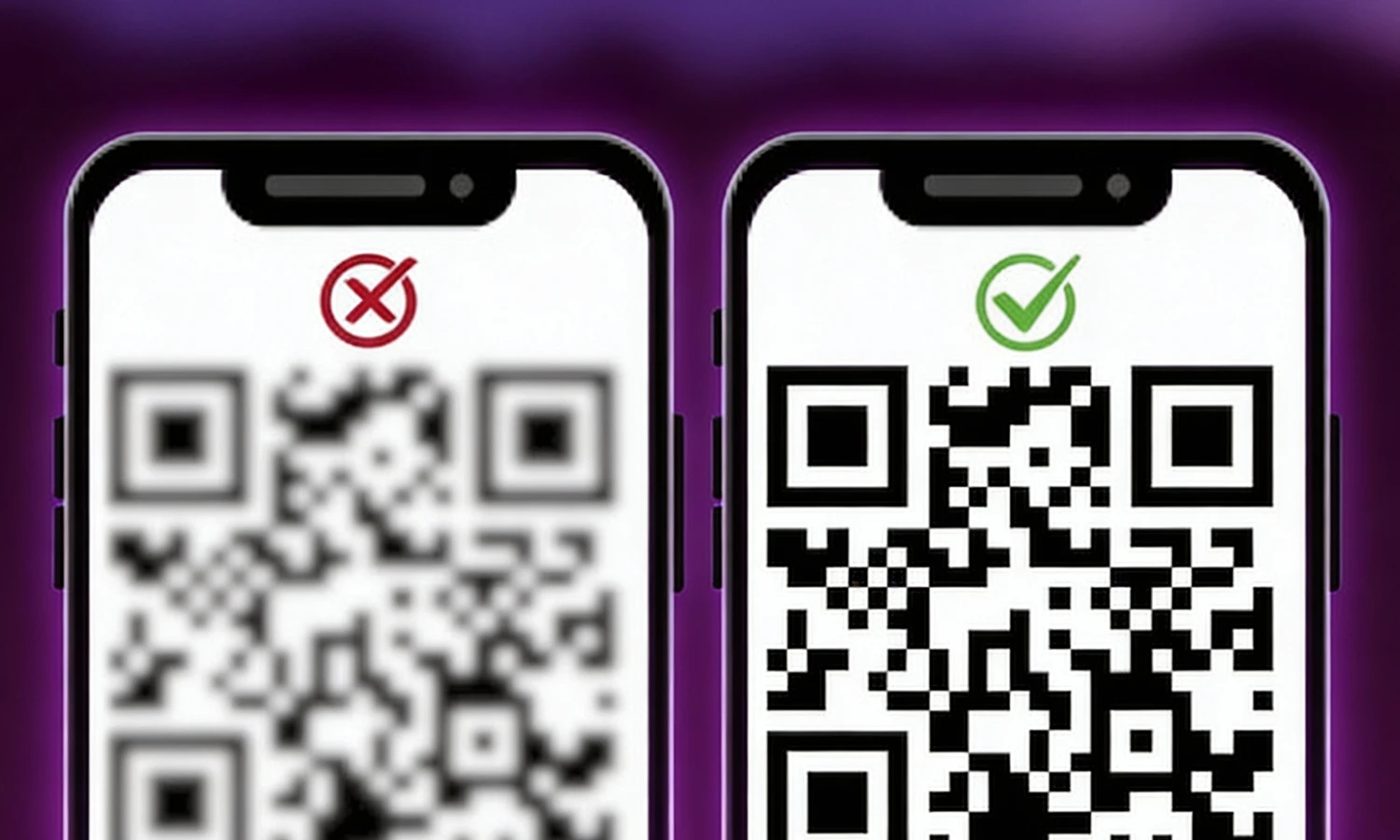
- The Fix: Always download your code in vector formats like SVG or PDF from a professional qr code tester platform. Vectors can be scaled to the size of a billboard without any loss in sharpness.
QR Code Size Problems: Too Small or Too Large
Size directly affects the focal range of a camera. If a code is too small, the camera cannot resolve the pixels; if it is too large, it might not fit in the viewfinder.
- The 10:1 Rule: Your scanning distance should be roughly 10 times the size of the code. For example, a code scanned from 1 meter away should be at least 10 cm wide.
- Minimum Size: Never print a code smaller than 2 x 2 cm for short-range scanning.
Broken or Missing Links (404 Errors)
Sometimes the code scans perfectly, but the page fails to load. This is a common qr code not working scenario where the underlying URL is broken or has a typo.
- The Fix: Use Dynamic QR Codes from QR Dada. Unlike static codes, dynamic versions allow you to update the destination URL at any time without changing the physical printed code.
Too Much Data Embedded in the QR Code
A "heavy" QR code has thousands of tiny dots because it contains too much information, such as a long URL with tracking parameters or a full vCard. This density makes it hard for a qrcode tester to decode the pattern in low light.
- The Fix: Use a URL shortener or dynamic links. This keeps the pixel grid simple and the modules large, which significantly improves scan speed.
Using Non-Scannable or Custom QR Code Shapes
While custom shapes are trendy, they are often the source of QR code design mistakes. If you alter the three large corner squares (the position markers), the scanner will fail to orient itself.
- The Fix: Keep the corner "eyes" as standard squares. Use QR code testing tools provided by QR Dada to ensure your custom pixel shapes (like rounds or diamonds) are still scannable.
Lighting and Camera Issues That Affect QR Code Scanning
Environmental factors are often the culprit when a code is perfectly designed but still fails.
- Glare: Glossy lamination reflects light directly into the lens, blinding the sensor. Fix this by tilting the phone to a 45-degree angle.
- Shadows: Ensure your own shadow is not falling across the code, which confuses the exposure settings.
Print Quality Problems That Reduce Scan Accuracy
Low-quality inkjet printing can cause "ink bleed," where the dark modules spread into the light spaces.
- The Fix: Use high-quality laser printing and matte finishes. Avoid "toner-save" modes that produce gray, translucent modules, as these kill the necessary contrast.
Key Takeaways
- Contrast is King: Always use a dark foreground on a light background.
- Mind the Margin: Never ignore the 4-module quiet zone.
- Go Vector: Use SVG files from QR Dada to avoid blurriness.
Stay Dynamic: Use dynamic links to prevent 404 errors and simplify the code pattern.