Using a Guide to Scanning QR Codes and Snapcodes with Snapchat helps you turn your phone into a bridge between the physical and digital worlds. Whether you are adding a new friend or visiting a website, this tool simplifies the process.
What Is a Snapcode and How Does It Work?
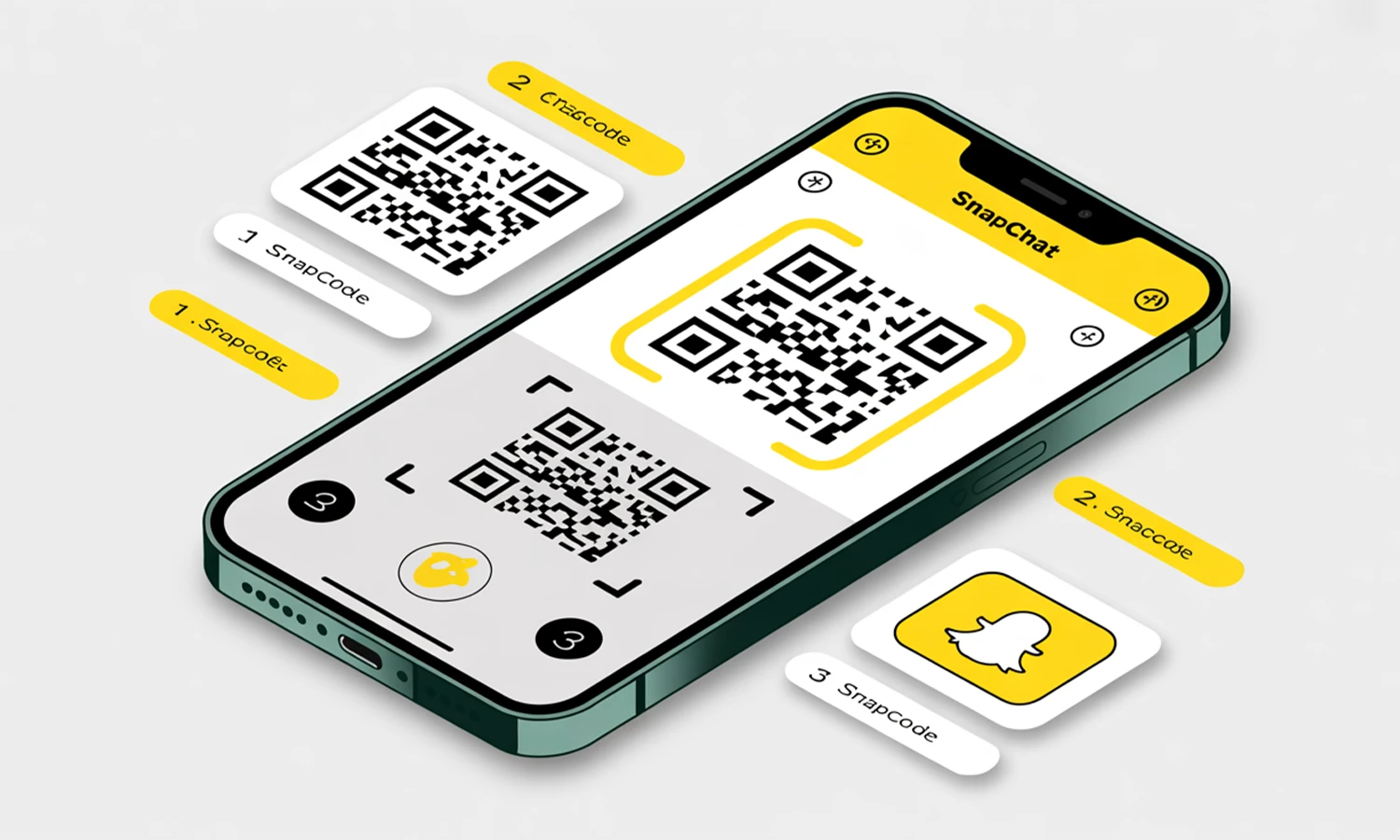
A Snapcode is a branded version of a QR code created specifically for Snapchat. It uses a unique dot pattern and a ghost logo to store information. When you use this Guide to Scanning QR Codes, the app recognizes these patterns to add friends, unlock lenses, or open hidden content.
Why Scanning Snapcodes Matters: Key Benefits Explained
Using this technology provides several advantages for social and business growth:
- Frictionless Social Growth: Add friends or creators instantly without typing usernames.
- Instant AR Engagement: Unlock Augmented Reality lenses and filters with one scan.
- Seamless Business Integration: Drive traffic to websites or products directly from packaging.
- High-Value Data: Access performance tracking and scan counts for business accounts.
- Enhanced Brand Aesthetic: Use Bitmojis or logos to make codes more appealing.
Step-by-Step Guide to Scanning a Snapcode on Snapchat
Scanning a code is simple and works in two ways depending on if the code is in front of you or saved on your phone.
Using the Snapchat Camera:
- Launch the app directly to the camera screen.
- Point your camera at the yellow Snapcode.
- Press and hold the center of the screen over the code.
- Tap the banner that appears to proceed.
Scanning from your Camera Roll:
- Take a screenshot or save the photo containing the code to your gallery.
- Tap your Profile icon in the top-left corner of the app.
- Select the Add Friends button.
- Tap the ghost icon located on the right side of the search bar.
- Choose the image from your gallery for automatic scanning.
How to Scan Regular QR Codes Using the Snapchat App
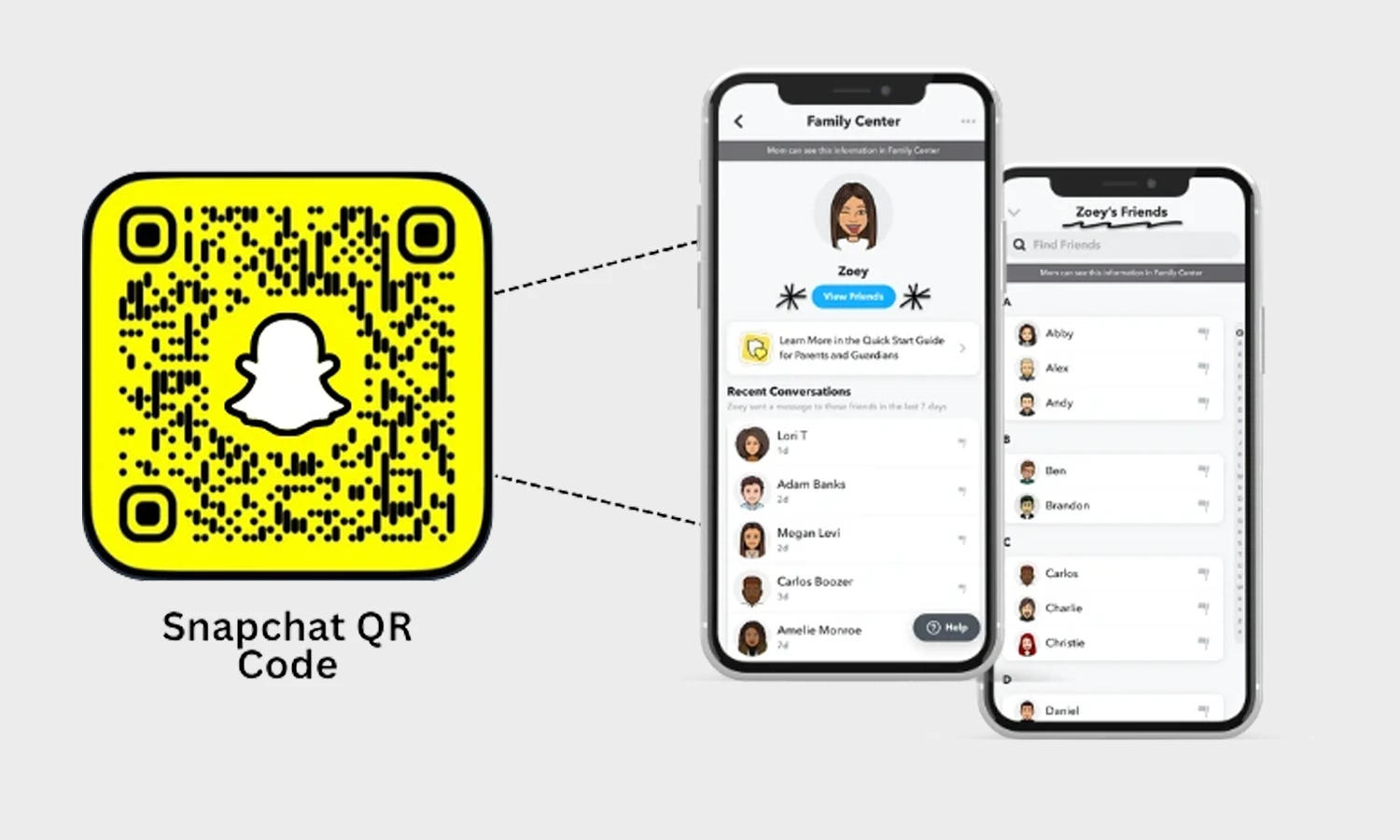
Snapchat also works as a snapchat qr code scanner for standard codes. To read qr code patterns:
- Open the camera interface in Snapchat.
- Center the snapchat qr code in your viewfinder.
- Press and hold the screen over the code for two seconds.
- Tap the link or "Open" button that appears on the screen.
Using this Guide to Scanning QR Codes makes it easy to visit website links or view digital menus without needing extra apps.
Snapcode vs QR Code: What’s the Difference?
While they look similar, these two formats have different uses and accessibility.
|
|
|
|
|
|
|
|
|
|
|
|
|
|
|
|
|
|
|
|
Common Issues When Scanning Snapcodes and How to Fix Them
If you follow this Guide to Scanning QR Codes and the scan fails, check these factors:
- Low Lighting: Move to a brighter area so the sensor can see the dots.
- Distance: Maintain a distance of 15–30 cm to stay in focus.
- Dirty Lens: Wipe your camera lens to remove smudges.
- Screen Glare: Tilt your phone to a 45-degree angle to avoid reflections.
- Altered Colors: Ensure the yellow frame is not missing or inverted.
How to Create a Custom Snapchat QR Code Using QR Dada
If you want to create Snapchat QR code designs that look professional, using a scan code generator like QR Dada is the best path. QR Dada acts as a Snapchat QR code generator that offers more design freedom than the basic app.
To use this QR code generator, copy your Snapchat profile link and paste it into the QR Dada URL field. You can then customize the colors to match your brand and add a high-resolution logo to the center. Using a dynamic qr code generator allows you to change the link later without reprinting your materials.
Key Takeaways
- Snapchat functions as a universal Snapchat QR code scanner.
- Snapcodes are proprietary and used for adding friends or unlocking AR content.
- Standard QR Codes can be scanned by any device and used for wider data like URLs.
- QR Dada provides the tools to create Snapchat QR code designs with advanced tracking.