If you are running a contest, collecting orders, taking feedback, or pushing a quick opt-in, SMS is still one of the fastest actions people can take. That is why learning how to add an SMS QR Code to posters and product labels can make a big difference. When someone scans, the message opens with your number and text already filled, so they only need to tap send.
In this blog, we will keep it simple and show you how to do it the right way using QR Dada.
What is an SMS QR Code generator?
An SMS QR tool helps you create a code that opens the user’s messaging app with a phone number and a pre-filled text. In simple terms, an sms qr code removes typing and makes the action quick, especially when people are standing in front of a poster or holding your product in their hand.
It is basically a clean way to guide the user from “I saw this” to “I sent the message” with less effort.
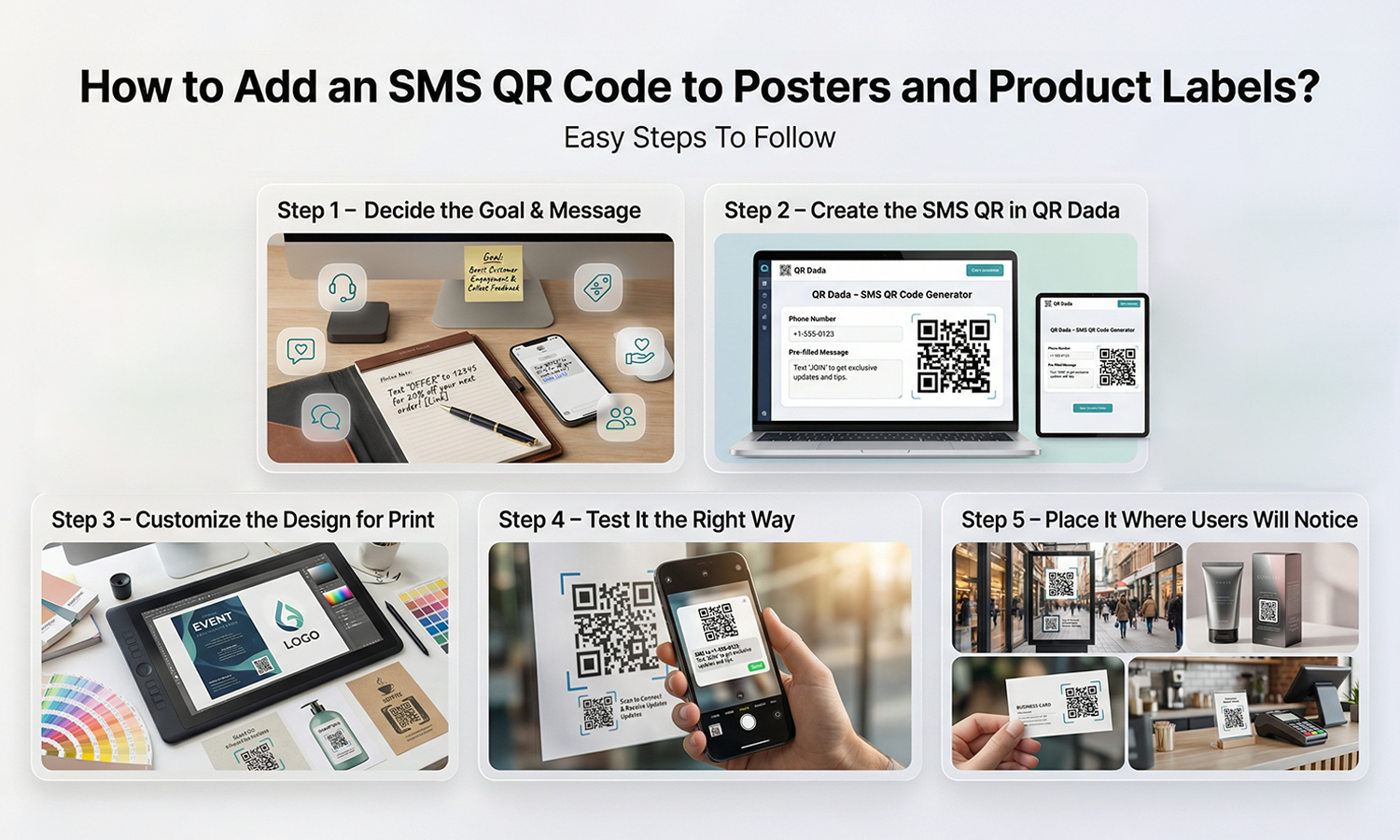
How to Add an SMS QR Code to Posters and Product Labels? Easy Steps To Follow
Here is the practical way to do How to Add an SMS QR Code using QR Dada, without making it complicated.
Step 1: Decide the goal and the message
Before you generate anything, be clear about the one action you want. For example:
- “Text JOIN to get a discount.”
- “Text ORDER to place an order”
- “Text HELP for support.”
Keep the message short and clear, because people scan fast and decide fast.
Step 2: Create the SMS QR in QR Dada
Open QR Dada and choose the SMS option. Add your phone number with the correct country code. Then write the message you want to appear.
This is where you are creating a QR code to SMS action, so the scan leads directly into the user’s messaging screen.
Step 3: Customize the design for print
For posters and labels, design matters. Use contrast that scans easily, keep the QR clean, and if you add your logo, do not overcrowd the code.
QR Dada is built to help you design codes properly, so you get a QR code generator with SMS support plus styling that still scans well on real print materials.
Step 4: Test it the right way
Do not skip testing. Scan using:
- An iPhone camera
- An Android camera
- One more scanner app if possible
Also test under normal lighting. A poster in daylight scans differently than a label under indoor lights.
Step 5: Place it where the user will notice it
For posters: keep it at eye level and not too close to the bottom edge.
For product labels: keep it away from folds, bottle curves, or edges where printing can distort.
Add a short instruction near it like “Scan to text us” so people understand what to do.
When you do How to Add an SMS QR Code properly, placement is half the result.
Poster and label ideas that actually work
Here are a few practical ways brands use it:
- On a restaurant poster: “Scan and text MENU to get today’s menu.”
- On a product label: “Scan and text WARRANTY to register your product”
- On an event standee: “Scan and text ENTRY to confirm your spot.”
In each case, the user sees one clear benefit, and your QR code SMS message is already set up to match that benefit.
Why QR Dada Is the Best Tool to Create SMS QR Codes for Posters and Product Labels
A lot of tools can generate a code, but what matters for posters and packaging is reliability and clean output. QR Dada is designed for business use, where you care about scanning, design, and using the same dashboard for multiple QR types.
If you are choosing the best SMS QR code generator, here is what you should look for:
- Easy creation with the right SMS format
- Custom design that still scans properly
- Print-ready downloads
- A clean way to manage multiple codes when you run campaigns
QR Dada fits that workflow well, and it stays practical even when you scale.
Also, if you are trying to keep costs under control while still getting professional output, QR Dada works as an affordable QR code generator because you can start simple and upgrade only when you need more advanced features.
Conclusion
The real value of How to Add an SMS QR Code is that it turns offline attention into an instant action. Posters and labels already get seen, you just need to make the next step easy for the customer.
If you want a clean and reliable sms qr code generator that is built for real print use, QR Dada is a solid option to create, design, test, and reuse codes across campaigns without stress.